.webp)


🎮 The Ultimate Guide: How to Download and Install Fortnite Across All Platforms (The 2025 Edition)
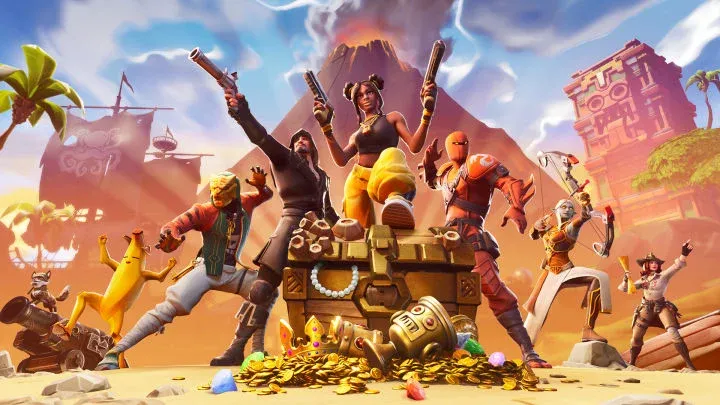
Fortnite is more than just a game; it is a continuously evolving entertainment ecosystem that spans Battle Royale, Zero Build, Creative, LEGO Fortnite, Fortnite Festival, and Rocket Racing. As the game continually expands in content and fidelity, the file size and system requirements have grown, making the download and installation process a critical first step. While the game remains free-to-play, ensuring a smooth, error-free setup across PC, console, and mobile devices requires understanding the specific platform requirements and the unique distribution methods used by Epic Games.
This comprehensive expert guide provides a definitive, step-by-step roadmap for downloading and installing Fortnite in the modern gaming landscape, addressing system compatibility, managing large file sizes, and troubleshooting common issues to get you into the Battle Bus as quickly and efficiently as possible.
💻 Phase I: PC and Mac Download (The Epic Games Launcher)
The primary and most straightforward method for playing Fortnite on a computer is through the proprietary Epic Games Launcher. This method is mandatory for PC users.
1. Preparing Your PC and Installing the Epic Games Launcher
Before beginning the download, you must ensure your system meets the current minimum requirements (which tend to increase with each new Chapter) and optimize your internet connection for the large file size.
- System Check and Storage: As of late 2025, Fortnite and its associated experiences (LEGO, Festival) require a significant amount of storage. Verify you have at least 140 GB of free space on an SSD (Solid State Drive) for optimal performance and faster loading times. For minimum requirements, ensure you have a 64-bit operating system (Windows 10 or 11), at least 8 GB of RAM, and a graphics card supporting DirectX 11 or higher.
- Downloading the Launcher: Navigate to the official Epic Games website and click the "Download" button to get the Epic Games Launcher installer. Run the installer and follow the prompts to complete the setup. You will need to create an Epic Games account or log in with an existing one (or a connected platform account like Google or PlayStation Network).
2. Locating and Installing Fortnite via the Launcher
Once the Launcher is installed and you are logged in, the process of acquiring and installing Fortnite is initiated from within the application interface.
- Acquiring the Game: Click on the "Store" tab within the Launcher. Use the search bar to find Fortnite. Click the game tile and select the "Get" button. Since Fortnite is free-to-play, this process simply adds the game to your account's "Library".
- The Installation Process: Go to your "Library" tab. Click on the Fortnite tile. A window will appear allowing you to:
- Select Install Location: Choose the directory where you want the game installed (installing to an SSD is highly recommended).
- Choose Installation Options: Decide whether to Auto Update and Create Desktop Shortcut.
- Accept Terms: Read and accept the Epic Games Terms of Service and End User License Agreement (EULA).
- Click "Install". The download will commence. Once complete, click the Fortnite tile again to launch the game and connect to the servers.
🕹️ Phase II: Console Download (PS5, Xbox Series X|S, Switch)
Console downloads are typically the most straightforward as they utilize the console's native storefront, but cross-platform account linking is essential for progress retention.
3. Downloading on PlayStation and Xbox
The process for downloading Fortnite on Sony and Microsoft consoles is nearly identical, relying on the built-in digital marketplace.
- Access the Store: On PlayStation consoles (PS4/PS5), navigate to the PlayStation Store. On Xbox consoles (Xbox One/Series X|S), navigate to the Microsoft Store.
- Search and Download: Use the search function to look for Fortnite. Locate the main Fortnite Battle Royale tile (which is listed as "Free" or "Free-to-Play"). Select the tile and choose the "Download" or "Get" option. The download should begin automatically.
- Preloading Large Updates (Pros/Cons): Consoles often allow for preloading massive Chapter updates before the servers go live (a service generally unavailable to PC users).
- Pros: Minimizes downtime. You can jump into the new Chapter the moment maintenance ends.
- Cons: Requires large amounts of pre-allocated storage (up to 40 GB) and requires the Automatic Updates feature to be enabled on your console.
4. Downloading on Nintendo Switch
The Nintendo Switch offers a distinct, albeit lower-fidelity, version of Fortnite, and the download method is platform-specific.
- Access the eShop: Navigate to the Nintendo eShop from the Switch Home Screen.
- Search and Download: Use the search bar to find Fortnite. Select the game listing and press the "Free Download" button. The game will begin downloading and installing directly to the console's internal memory or inserted microSD card.
- Storage Consideration: The Switch has limited internal storage (32 GB or 64 GB). Due to Fortnite's size, a large capacity microSD card is highly recommended for consistent performance and to accommodate future updates.
📱 Phase III: Android and Cloud Gaming Download
Downloading Fortnite on Android bypasses the Google Play Store, while cloud gaming offers an alternative for devices with limited storage or lower specifications.
5. The Android Sideloading Method
Due to the ongoing legal and distribution disputes between Epic Games and Google, Fortnite is generally not available on the Google Play Store. The game must be installed directly from Epic Games.
- Download the Epic Games App: Open your mobile web browser (e.g., Chrome) and go to the official Epic Games website for Android. Tap the "Download Now" button to download the Epic Games App installer file (an APK).
- Sideloading and Installation: You will be prompted to allow installations from "Unknown Sources" in your phone's settings (a necessary security step for any app not from the Play Store). Accept this setting, then open the downloaded APK file. Once the Epic Games App is installed, open it and install Fortnite from within the app.
6. Cloud Gaming Alternatives (Xbox Cloud Gaming / GeForce NOW)
For users with limited storage, older devices, or slow download speeds, Cloud Gaming is a viable, high-performance alternative that requires no local download.
- No Download Required: Cloud services stream the game directly to your device. This means zero local storage space is required for the Fortnite application itself.
- Subscription and Internet Requirement: Services like Xbox Cloud Gaming and NVIDIA GeForce NOW stream Fortnite for free (though some services may require a subscription for high-end features or no waiting queues). This method requires a stable, high-speed internet connection (minimum 15-25 Mbps recommended) to prevent lag or poor video quality.
🔗 Phase IV: Account Management and Troubleshooting
Once the physical download is complete, linking your Epic Games account and knowing how to fix common errors is the final step to mastery.
7. Epic Account Linking and Cross-Progression
Fortnite is a cross-platform game, meaning your skins, V-Bucks, and Battle Pass progress are tied to your central Epic Games Account, not the platform itself.
- The Crucial Link: Before launching the game on any new platform (especially console and mobile), ensure your platform account (PSN, Xbox Live, Nintendo, Google) is correctly linked to your main Epic Games Account on the Epic Games website. This ensures seamless progress transfer.
- V-Bucks Restriction (Cons): While cosmetic items transfer freely, V-Bucks (in-game currency) purchased on one console (e.g., PS5) may not be spendable on another (e.g., Nintendo Switch) due to platform licensing restrictions. This is a crucial limitation to be aware of.
8. Troubleshooting Common Download Errors
Large downloads are prone to interruptions and errors. Knowing how to quickly fix these saves significant time.
- Stuck Download/Update: This is common after massive Chapter updates.
- PC/Mac Fix: Close the Epic Games Launcher completely via the Task Manager (or Force Quit on Mac). Restart the Launcher. This often forces a re-check of the files, correcting the issue.
- Console Fix: Manually initiate the update. Go to the Fortnite icon, press the Options/Menu button, and select "Check for Update."
- "Installation Failed" Error: This is usually due to insufficient disk space or a corrupted initial download file. Free up at least 10 GB more than the required amount and re-start the download process from scratch.
🛠️ Phase V: Post-Installation Optimization
Even after the game is installed, performance optimization is key, particularly for competitive play.
9. Graphics Settings (PC)
Optimizing in-game graphics settings directly impacts Frame Rate Per Second (FPS), which is crucial for competitive advantage.
- Prioritize Performance over Fidelity: In the in-game settings menu, prioritize FPS over graphics. Competitive players set most options to "Low" or "Off" to maintain a stable 144+ FPS.
- Key Settings to Reduce: Lower Shadows, View Distance (set to Medium or High, not Epic), and Effects. Keep Resolution at your native monitor resolution.
- DirectX Selection: Ensure your game is running on the correct graphics API, typically DirectX 12 for modern performance. If you experience stability issues, revert to DirectX 11.
10. Bandwidth Management and Latency (Ping)
Fortnite is a fast-paced online game; lag and high latency (ping) are fatal.
- Wired Connection (Pros): For PC and console, use a wired Ethernet connection instead of Wi-Fi. This dramatically reduces latency and prevents packet loss.
- Close Background Applications: Close all unnecessary applications that use internet bandwidth (e.g., streaming services like Netflix, large file downloads, or torrent clients) during gameplay to dedicate maximum bandwidth to the game server.
⭐ Conclusion: The Seamless Start
The journey to your first Fortnite Victory Royale begins with a successful download. By following the platform-specific instructions—utilizing the Epic Games Launcher on PC, the native storefronts on console, or the direct sideload/cloud streaming methods on mobile—and ensuring your Epic Games account is correctly linked, you bypass the common hurdles that plague new players. With a verified system, optimized settings, and a stable connection, the only thing standing between you and the Battle Bus is the final launch button. Jump in, and may the storm be ever in your favor.
Overall Expert Rating: 4.5/5 Stars (Download is generally seamless on Console/PC, but Mobile complexity and massive file size are ongoing issues.)
Pros:
- Free-to-Play: Access to Battle Royale, Zero Build, and all new Creative experiences is completely free.
- Cross-Platform: Single account linking allows seamless progress across all devices.
- Multiple Download Options: Cloud streaming ensures access even on low-spec devices.
Cons:
- Massive File Size: The installation size is extremely large (140 GB+) and requires an SSD for optimal performance.
- Android Complexity: The download process is complicated by the required sideloading method, bypassing the Google Play Store.
- V-Bucks Limitation: Purchased V-Bucks do not always transfer across different console ecosystems.